

Licensing
You can test both developer and organization features for free. However, to remove watermark from React PDF Kit, a valid license is required. Please purchase a commercial license.
License Types at a Glance
Section titled “License Types at a Glance”React PDF Kit offers three license types based on how your React.js or Next.js application is deployed:
| Developer | Organization | Custom | |
|---|---|---|---|
| Ideal for | Individual projects on a single domain | Teams managing multiple domains or subdomains | Electron apps, offline tools, or dynamic deployments |
| Domain support | Specific host only | Specific host and wildcard | Single license key with no domain validation |
| Setup | One token per domain | One token can cover all subdomains | One license key for all environments |
-
Developer License — Best for solo developers deploying to one domain. You’ll generate a domain token per environment (e.g.
localhostfor dev andapp.example.comfor production). See Manage a Domain Token below. -
Organization License — For teams that need flexibility. Support both specific host tokens and wildcard tokens (e.g. One token covers
*.your-domain.com). See Wildcard for details. -
Custom License — Use a single license key that works without domain-based validation. Ideal for desktop apps (e.g., Electron), on-premise deployments, or environments where the host is dynamic or unknown. Contact us for more details.
Manage a Domain Token
Section titled “Manage a Domain Token”A domain token is a unique key that unlocks React PDF for a domain, subdomain, or IP address. It authenticates your licensed usage and removes the watermark in the viewer.
After purchasing a license, you will receive an email with instructions on how to generate license tokens for your corresponding domains. Each token must be bound to a corresponding domain, subdomain or IP address.
You could also access the License Manager page directly to create and manage your tokens.
On the Manage Domain page, you can generate multiple tokens per license. However, each token can only be linked to a single domain or subdomain/IP, using one of the following types: Specific Host and Wildcard.
Specific Host
Section titled “Specific Host”A Specific Host token binds to an exact domain, subdomain or IP address.
Accepted formats include:
- Localhost (e.g.,
localhost:3000,localhost:5173) for local development - Domain names (e.g.,
test.example.com,www.example.com) - IP addresses and non-standard ports (e.g.,
192.168.1.1,127.0.0.1:5173)
⚠️ Only exact matches are supported. For example, a token for
example.comwill not cover subdomains likewww.example.comorxyz.example.com. These must be added separately.
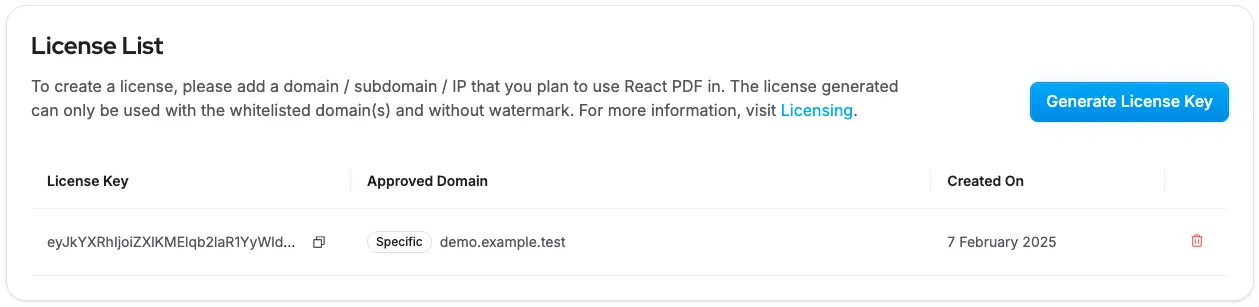
Wildcard
Section titled “Wildcard”Wildcard is only available with an Organization license.
A Wildcard license token binds to a single root domain and automatically includes all of its subdomains.
For example, a token binded to your-domain.com will also cover:
app.your-domain.comdev.your-domain.comadmin.your-domain.com
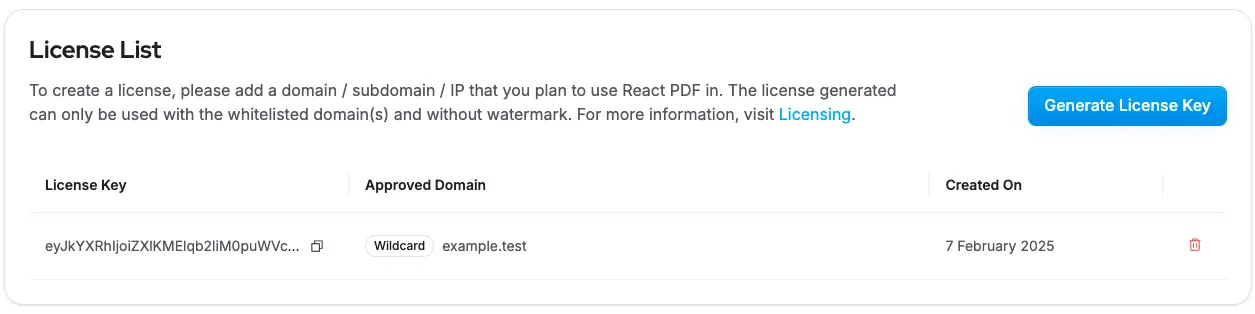
Remark: For more details, refer to the License Agreement
Use a Domain Token
Section titled “Use a Domain Token”After creating a token for your domain on the License Manager page, here is how you can add a domain token in your React PDF project.
import { RPConfig } from '@react-pdf-kit/viewer'import AppPdfViewer from './AppPdfViewer'
const YOUR_DOMAIN_TOKEN = ''
function App() { return ( <RPConfig licenseKey={YOUR_DOMAIN_TOKEN}> {/* A reusable React PDF viewer component */} <AppPdfViewer /> </RPConfig> )}export default Appimport { RPConfig } from '@react-pdf-kit/viewer'import AppPdfViewer from './AppPdfViewer'
const YOUR_DOMAIN_TOKEN = ''
function App() { return ( <RPConfig licenseKey={YOUR_DOMAIN_TOKEN}> {/* A reusable React PDF viewer component */} <AppPdfViewer /> </RPConfig> )}export default AppUse Domain Tokens for Different Environments
Section titled “Use Domain Tokens for Different Environments”If you have different environments for your project, you may set up an .env file to config one domain token per environment.
Step 1: Define Environment Varaibles
Section titled “Step 1: Define Environment Varaibles”React vite
Section titled “React vite”# .env.developmentVITE_RP_DOMAIN_TOKEN="Your Dev Domain Token"
# .env.stagingVITE_RP_DOMAIN_TOKEN="Your Staging Domain Token"
# .env.productionVITE_RP_DOMAIN_TOKEN="Your Prod Domain Token"Nextjs
Section titled “Nextjs”# .env.developmentNEXT_PUBLIC_DOMAIN_TOKEN="Your Dev Domain Token"
# .env.testNEXT_PUBLIC_DOMAIN_TOKEN="Your Staging Domain Token"
# .env.productionNEXT_PUBLIC_DOMAIN_TOKEN="Your Prod Domain Token"Step 2: Configure Each Key in CI/CD Pipeline
Section titled “Step 2: Configure Each Key in CI/CD Pipeline”After defining environment variables for each environment, you can configure them in your CI/CD pipeline so your application can access the correct domain token per environment.
Example: Vercel Configuration
- Navigate to your Vercel project → Settings → Environment Variables
- Add the following variables for each environment:
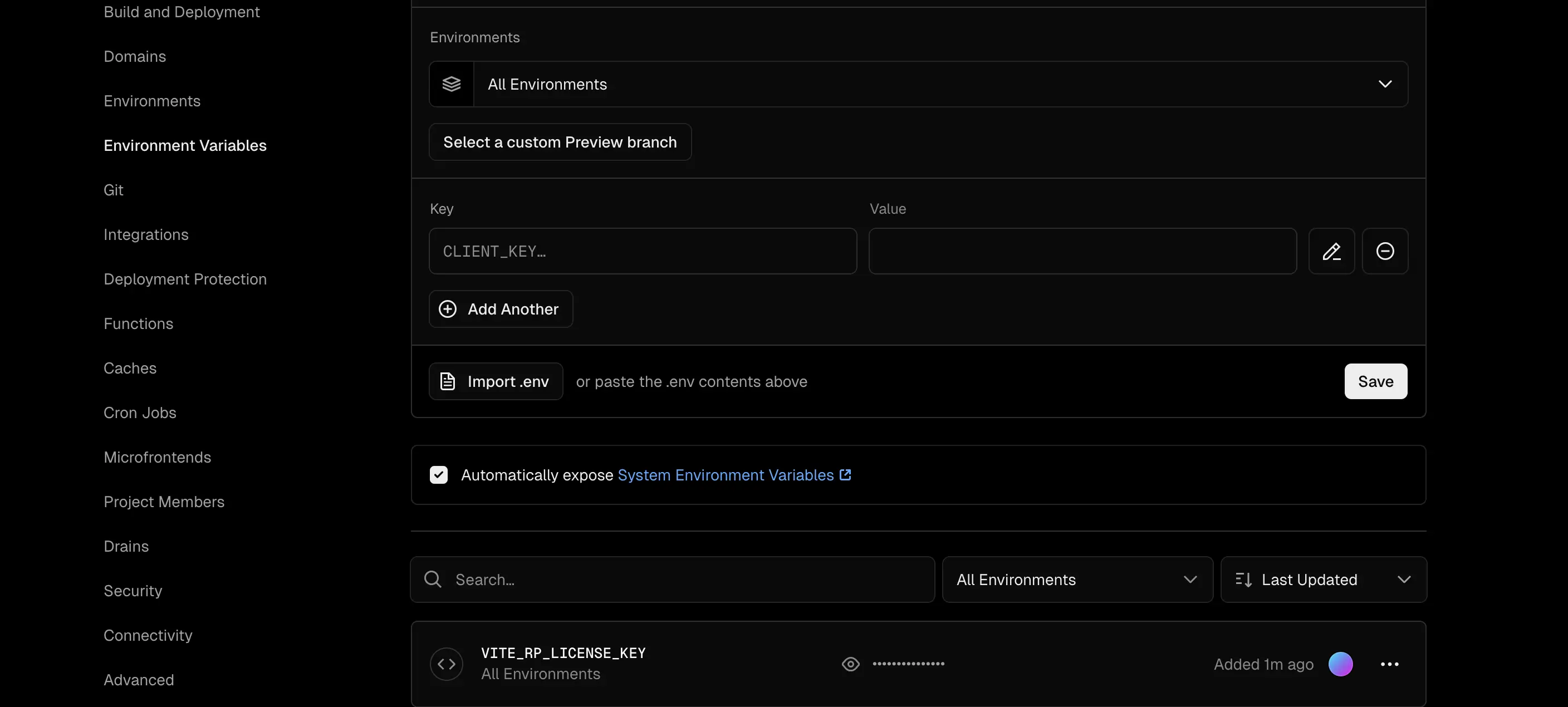
Step 3: Import domain token
Section titled “Step 3: Import domain token”Import domain token from .env and use it on RPConfig
React vite
Section titled “React vite”const DOMAIN_TOKEN = import.meta.env.VITE_RP_DOMAIN_TOKEN
<RPConfig licenseKey={DOMAIN_TOKEN}> ... <AppPdfViewer /></RPConfig>Nextjs
Section titled “Nextjs”const DOMAIN_TOKEN = process.env.NEXT_PUBLIC_RP_DOMAIN_TOKEN
<RPConfig licenseKey={DOMAIN_TOKEN}> ... <AppPdfViewer /></RPConfig>Use Domain Tokens for Multiple Domains
Section titled “Use Domain Tokens for Multiple Domains”If your application needs to run on multiple domains or subdomains, you could map the domain tokens on the client-side or server-side to authenticate the license and remove watermark from React PDF Kit.
For example, you have a Viewer Organization license and you are running an application that serves clients with different domains:
- Domain 1: example.com
- Domain 2: classic-example.com
- Domain 3: complex-example.com
Front-End Implementation
Section titled “Front-End Implementation”import { RPConfig, RPPages, RPProvider } from "@react-pdf-kit/viewer";
const domainTokenMap: Record<string, string> = { localhost: "Your Dev Domain Token", "localhost:5173": "Your Dev Domain Token", "example.com": "Your Prod Domain Token", "classic-example.com": "Your Classic Domain Token", "complex-example.com": "Your Complex Domain Token",};
const pdfFileSource = "https://raw.githubusercontent.com/mozilla/pdf.js/ba2edeae/web/compressed.tracemonkey-pldi-09.pdf";
export default function App() { const currentHost = window.location.host; const YOUR_DOMAIN_TOKEN = domainTokenMap[currentHost] ?? "";
return ( <RPConfig licenseKey={YOUR_DOMAIN_TOKEN}> <RPProvider src={pdfFileSource}> <RPPages /> </RPProvider> </RPConfig> );}Back-End Implementation
Section titled “Back-End Implementation”If you’re looking for a more dynamic and secure license authentication approach, you could fetch the host from the client side and match the right domain token via a REST API.
This approach allows the React PDF Viewer component to initialize the license and remove the watermark without exposing license on the client side.
Use a Single License Key for All Domains
Section titled “Use a Single License Key for All Domains”If you are looking to validate your application without domain-based restrictions, we offer a custom license with a SINGLE license key.
For more information on how to purchase one, please reach out to support@react-pdf-kit.dev.