

Add a Custom Search Bar on the Top Bar
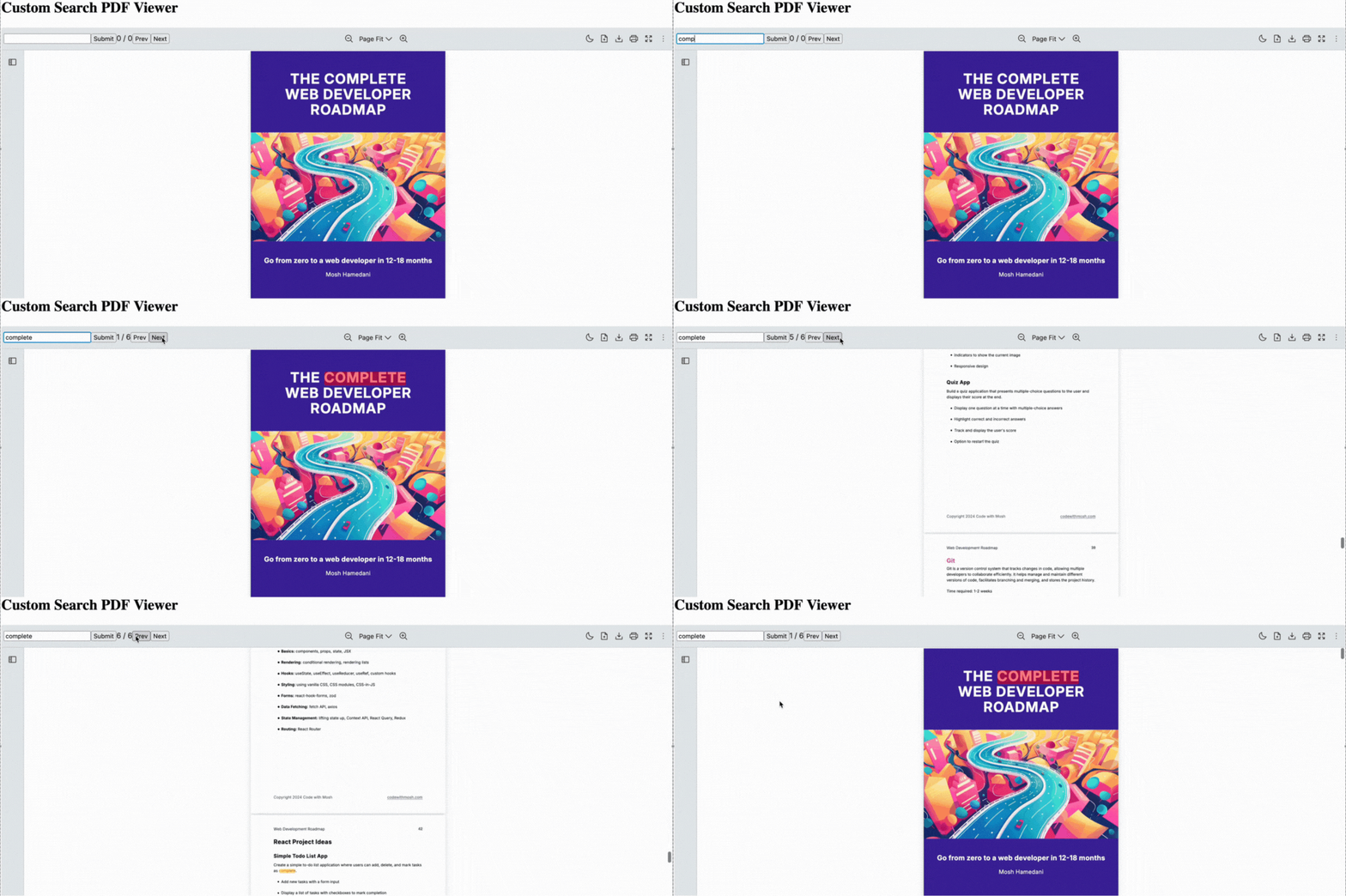
Scenario
Section titled “Scenario”You need a custom search bar on the React PDF Viewer component’s top bar instead of using the default search tool.
- To match your app’s design system
- To add debounce or special search logic
- To place the search bar directly in the top bar
What to Use
Section titled “What to Use”You can fully control the search UI such as the input field, navigation buttons, and match counter while keeping it integrated with the React PDF Kit’s built-in search system.
The useSearchContext provides a function to search and highlight the first occurrence of a text in a React PDF.
Here are the functions we’re using for this example
| Name | Objective |
|---|---|
currentMatchPosition | Return the index (1-based) of the currently highlighted match within the total search results. Help track the user’s current position among matches |
loading | Indicate whether a search operation is currently in progress |
nextMatch | Navigates to and highlights the next search result in the document. Wraps around to the first match if the end is reached |
prevMatch | Navigate to and highlights the previous search result in the document. Wrap around to the last match if the beginning is reached |
search | Execute a search for the specified text within the currently loaded PDF document. |
setSearch | Update the search query value without immediately executing a new search |
totalMatches | Indicate the total number of text matches found in the PDF document for the current search term |
After integrating the useSearchContext hook into a custom search UI, you may use createPortal to add the component into the top bar of the Viewer.
| Name | Objective |
|---|---|
createPortal | Render the given React content into a specific container |
import { useState, useCallback, useRef, useEffect } from "react";import {  RPConfig,  RPProvider,  RPLayout,  RPPages,  useSearchContext,  RPHorizontalBar,  RPVerticalBar} from "@react-pdf-kit/viewer";import React from "react";import { createPortal } from "react-dom";
const CustomSearch = () => {const {search,setSearch,currentMatchPosition,totalMatches,nextMatch,prevMatch,loading,} = useSearchContext();
const [searchValue, setSearchValue] = useState(search);
const handleChange = useCallback((e) => {setSearchValue(e.target.value);},[]);
// Debounce search inputuseEffect(() => {const timer = setTimeout(() => {setSearch(searchValue);}, 500);
    return () => clearTimeout(timer);
}, [searchValue,searchValue]);
const handleSubmit = useCallback(() => {setSearch(searchValue);}, [searchValue, setSearch]);
const handleNext = useCallback(() => {nextMatch();}, [nextMatch]);
const handlePrev = useCallback(() => {prevMatch();}, [prevMatch]);
return (<div><input value={searchValue} onChange={handleChange} /><button onClick={handleSubmit}>Submit</button><span>{currentMatchPosition} / {totalMatches}</span><button onClick={handlePrev}>Prev</button><button onClick={handleNext}>Next</button>{loading && <div>searching...</div>}</div>);};
export const AppPdfViewerSearch = () => {  const ref = useRef(null);  const [target, setTarget] = useState(null);
useEffect(() => {const elemTopBarLeft = ref.current?.querySelector('[data-rp="topBarLeft"]');if (elemTopBarLeft) {const wrapper = document.createElement("div");ref.current = wrapper;
      elemTopBarLeft.prepend(wrapper);      setTarget(wrapper);    }
}, []);
return (<><RPConfig licenseKey="YOUR_DOMAIN_TOKEN"><RPProvider src="https://cdn.codewithmosh.com/image/upload/v1721763853/guides/web-roadmap.pdf"><div ref={ref}><RPLayouttoolbar={{                  topbar: { component: <RPHorizontalBar slots={{ searchTool: false, pageNavigationTool: false }} /> }leftSidebar: { component: <RPVerticalBar /> }}} >{target && createPortal(<CustomSearch />, target)}<RPPages /></RPLayout></div></RPProvider></RPConfig></>);};
import { useState, useCallback, useRef, useEffect, FC } from "react";import { RPConfig, RPProvider, RPLayout, RPPages, useSearchContext, RPHorizontalBar, RPVerticalBar} from "@react-pdf-kit/viewer";import React from "react";import { createPortal } from "react-dom";
const CustomSearch = () => { const { search, setSearch, currentMatchPosition, totalMatches, nextMatch, prevMatch, loading, } = useSearchContext();
const [searchValue, setSearchValue] = useState(search);
const handleChange = useCallback( (e: React.ChangeEvent<HTMLInputElement>) => { setSearchValue(e.target.value); }, [] );
// Debounce search input useEffect(() => { const timer = setTimeout(() => { setSearch(searchValue); }, 500);
return () => clearTimeout(timer); }, [searchValue,searchValue]);
const handleSubmit = useCallback(() => { setSearch(searchValue); }, [searchValue, setSearch]);
const handleNext = useCallback(() => { nextMatch(); }, [nextMatch]);
const handlePrev = useCallback(() => { prevMatch(); }, [prevMatch]);
return ( <div> <input value={searchValue} onChange={handleChange} /> <button onClick={handleSubmit}>Submit</button> <span> {currentMatchPosition} / {totalMatches} </span> <button onClick={handlePrev}>Prev</button> <button onClick={handleNext}>Next</button> {loading && <div>searching...</div>} </div> );};
export const AppPdfViewerSearch: FC = () => { const ref = useRef<HTMLDivElement | null>(null); const [target, setTarget] = useState<Element | null>(null);
useEffect(() => { const elemTopBarLeft = ref.current?.querySelector('[data-rp="topBarLeft"]'); if (elemTopBarLeft) { const wrapper = document.createElement("div"); ref.current = wrapper;
elemTopBarLeft.prepend(wrapper); setTarget(wrapper); } }, []);
return ( <> <RPConfig licenseKey="YOUR_DOMAIN_TOKEN"> <RPProvider src="https://cdn.codewithmosh.com/image/upload/v1721763853/guides/web-roadmap.pdf"> <div ref={ref}> <RPLayout toolbar={{ topbar: { component: <RPHorizontalBar slots={{ searchTool: false, pageNavigationTool: false }} /> } leftSidebar: { component: <RPVerticalBar /> } }} > {target && createPortal(<CustomSearch />, target)} <RPPages /> </RPLayout> </div> </RPProvider> </RPConfig> </> );};