

Build Your Own Toolbar with MUI
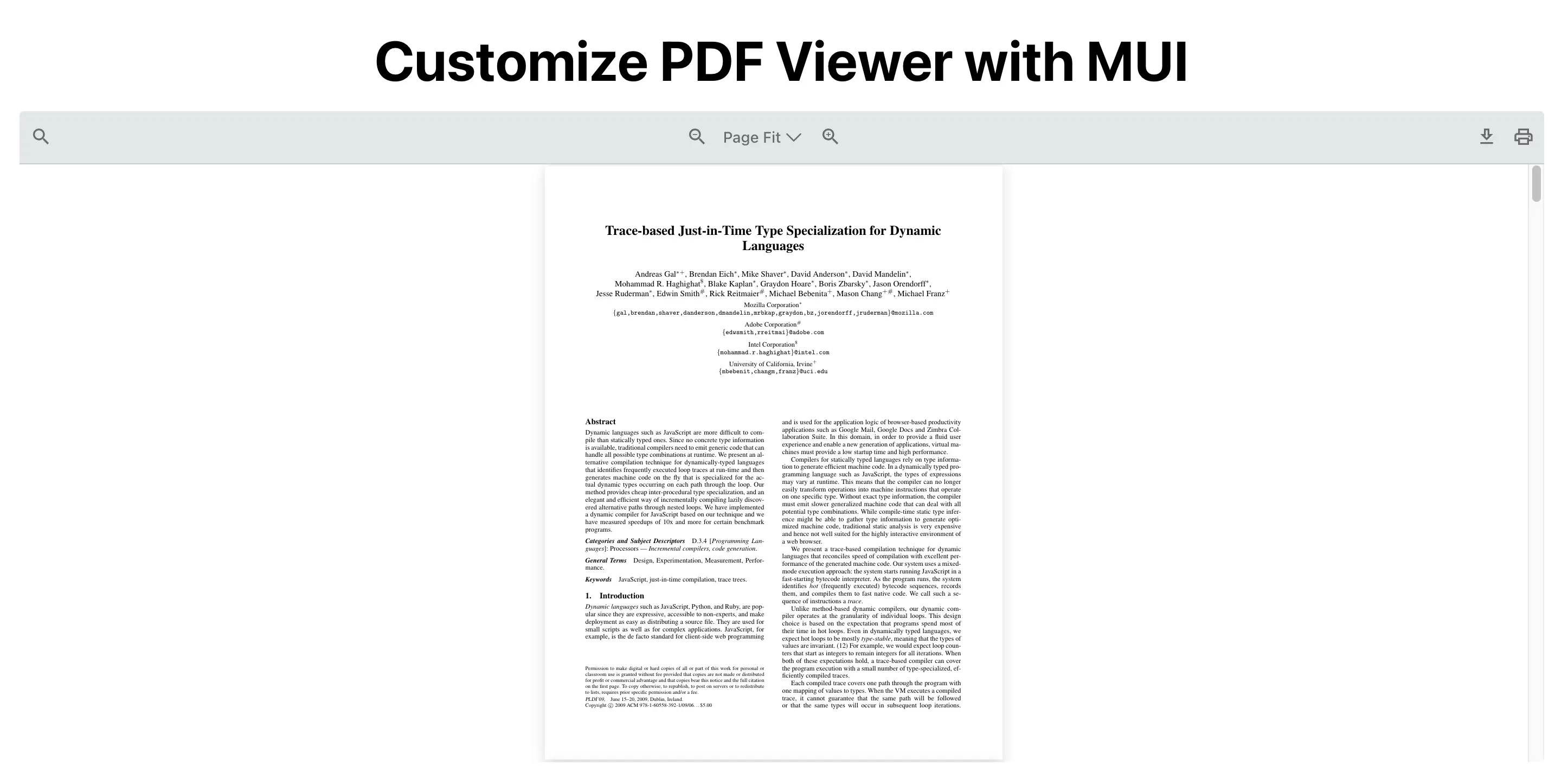
This guide walks through building a custom PDF viewer toolbar with MUI (Material-UI). You use React PDF Kit for PDF rendering and MUI for toolbar UI such as icons, theming, or full custom layout. The library supports two ways to build with MUI:
- Build with MUI using the default toolbar - Use the built-in
RPLayoutandRPHorizontalBarwith a slots map to show or hide default tools, and the icons prop to use MUI icons. Optionally wrap in RPTheme with customVariables to style the toolbar. - Build with MUI using Context API - Build the entire toolbar from scratch with MUI only (
Paper,Toolbar,Stack, etc.) and wire every action through the library’s React Context hooks (zoom, pagination, search, print, download). Full control over layout and styling.
Build with MUI using the default toolbar
Section titled “Build with MUI using the default toolbar”The default toolbar layout is provided by the library. You can choose which tools to show or hide and style them with RPTheme and MUI icons.
Use RPLayout and RPHorizontalBar with a slots map to show or hide built-in tools, and the icons prop to swap in MUI icons.
Use this approach when you want the default toolbar layout and behavior with MUI icons and optional theming.
-
Define an enum (or object) for the toolbar slot keys the viewer expects. This keeps slot names in one place and matches the keys used by
RPHorizontalBar.src/lib/types.js export const PDF_VIEWER_TOOL = Object.freeze({searchTool: "searchTool",pageNavigationTool: "pageNavigationTool",zoomTool: "zoomTool",themeSwitcher: "themeSwitcher",downloadTool: "downloadTool",openFileTool: "openFileTool",printTool: "printTool",fullscreenTool: "fullscreenTool",jumpNavigationTool: "jumpNavigationTool",selectionModeTool: "selectionModeTool",rotateTool: "rotateTool",viewModeTool: "viewModeTool",scrollModeTool: "scrollModeTool",documentProperties: "documentProperties",thumbnailTool: "thumbnailTool",sidebarEnable: "sidebarEnable",dropFileZone: "dropFileZone",})src/lib/types.ts export enum PDF_VIEWER_TOOL {searchTool = "searchTool",pageNavigationTool = "pageNavigationTool",zoomTool = "zoomTool",themeSwitcher = "themeSwitcher",downloadTool = "downloadTool",openFileTool = "openFileTool",printTool = "printTool",fullscreenTool = "fullscreenTool",jumpNavigationTool = "jumpNavigationTool",selectionModeTool = "selectionModeTool",rotateTool = "rotateTool",viewModeTool = "viewModeTool",scrollModeTool = "scrollModeTool",documentProperties = "documentProperties",thumbnailTool = "thumbnailTool",sidebarEnable = "sidebarEnable",dropFileZone = "dropFileZone",} -
Build a slots object that enables only the tools you want. For each slot key, set
trueto use the default tool orfalseto hide it. No custom components are required, the library’s default tools are used; you only control visibility.src/components/AppCustomizePdfViewer.jsx import { PDF_VIEWER_TOOL } from "../lib/types";const slots = Object.values(PDF_VIEWER_TOOL);const AVAILABLE_TOOLS = [PDF_VIEWER_TOOL.searchTool,PDF_VIEWER_TOOL.zoomTool,PDF_VIEWER_TOOL.downloadTool,PDF_VIEWER_TOOL.printTool,];const renderSlots = Object.fromEntries(slots.map((key) => {return [key, AVAILABLE_TOOLS.includes(key)];}),);src/components/AppCustomizePdfViewer.tsx import { type FC } from "react";import { PDF_VIEWER_TOOL } from "../lib/types";const slots = Object.values(PDF_VIEWER_TOOL);const AVAILABLE_TOOLS = [PDF_VIEWER_TOOL.searchTool,PDF_VIEWER_TOOL.zoomTool,PDF_VIEWER_TOOL.downloadTool,PDF_VIEWER_TOOL.printTool,];const renderSlots = Object.fromEntries(slots.map((key) => {return [key, AVAILABLE_TOOLS.includes(key)];}),);- AVAILABLE_TOOLS: Array of slot keys to show in the toolbar; all other slots are disabled.
- renderSlots: Map of every slot key to
true(show default tool) orfalse(hide).
-
(Optional) Wrap the viewer in
RPThemeand pass customVariables to style the default toolbar (tooltip, button padding, border radius, text color).<RPThemecustomVariables={{"--rp-tooltip-background-color": "#0000008a","--rp-button-padding": "5px","--rp-button-border-radius": "20px","--rp-text-color": "#0000008a",}}>{/* RPProvider and RPLayout go here */}</RPTheme><RPThemecustomVariables={{"--rp-tooltip-background-color": "#0000008a","--rp-button-padding": "5px","--rp-button-border-radius": "20px","--rp-text-color": "#0000008a",}}>{/* RPProvider and RPLayout go here */}</RPTheme> -
Use
RPProviderwith your PDFsrc, then RPLayout withtoolbar.topbar.componentset toRPHorizontalBar. Passslots(from step 2) andiconsto replace default icons with MUI icons from@mui/icons-material.src/components/AppCustomizePdfViewer.jsx import { Box } from "@mui/material";import {RPProvider,RPPages,RPLayout,RPHorizontalBar,RPTheme,} from "@react-pdf-kit/viewer";import { PDF_VIEWER_TOOL } from "../lib/types";import {DownloadOutlined,PrintOutlined,Search as SearchIcon,ZoomIn,ZoomOut,} from "@mui/icons-material";const slots = Object.values(PDF_VIEWER_TOOL);const AVAILABLE_TOOLS = [PDF_VIEWER_TOOL.searchTool,PDF_VIEWER_TOOL.zoomTool,PDF_VIEWER_TOOL.downloadTool,PDF_VIEWER_TOOL.printTool,];const renderSlots = Object.fromEntries(slots.map((key) => {return [key, AVAILABLE_TOOLS.includes(key)];}),);const AppCustomizePdfViewer = () => {return (<RPThemecustomVariables={{"--rp-tooltip-background-color": "#0000008a","--rp-button-padding": "5px","--rp-button-border-radius": "20px","--rp-text-color": "#0000008a",}}><RPProvider src="https://raw.githubusercontent.com/mozilla/pdf.js/ba2edeae/web/compressed.tracemonkey-pldi-09.pdf"><Box sx={{ height: "600px", width: "100%" }}><RPLayouttoolbar={{topbar: {component: (<RPHorizontalBarslots={renderSlots}icons={{searchIcon: <SearchIcon fontSize="small" />,zoomInIcon: <ZoomIn fontSize="small" />,zoomOutIcon: <ZoomOut fontSize="small" />,downloadIcon: <DownloadOutlined fontSize="small" />,printIcon: <PrintOutlined fontSize="small" />,}}/>),},}}><RPPages /></RPLayout></Box></RPProvider></RPTheme>);};export default AppCustomizePdfViewer;src/components/AppCustomizePdfViewer.tsx import { Box } from "@mui/material";import {RPProvider,RPPages,RPLayout,RPHorizontalBar,RPTheme,} from "@react-pdf-kit/viewer";import { type FC } from "react";import { PDF_VIEWER_TOOL } from "../lib/types";import {DownloadOutlined,PrintOutlined,Search as SearchIcon,ZoomIn,ZoomOut,} from "@mui/icons-material";const slots = Object.values(PDF_VIEWER_TOOL);const AVAILABLE_TOOLS = [PDF_VIEWER_TOOL.searchTool,PDF_VIEWER_TOOL.zoomTool,PDF_VIEWER_TOOL.downloadTool,PDF_VIEWER_TOOL.printTool,];const renderSlots = Object.fromEntries(slots.map((key) => {return [key, AVAILABLE_TOOLS.includes(key)];}),);const AppCustomizePdfViewer: FC = () => {return (<RPThemecustomVariables={{"--rp-tooltip-background-color": "#0000008a","--rp-button-padding": "5px","--rp-button-border-radius": "20px","--rp-text-color": "#0000008a",}}><RPProvider src="https://raw.githubusercontent.com/mozilla/pdf.js/ba2edeae/web/compressed.tracemonkey-pldi-09.pdf"><Box sx={{ height: "600px", width: "100%" }}><RPLayouttoolbar={{topbar: {component: (<RPHorizontalBarslots={renderSlots}icons={{searchIcon: <SearchIcon fontSize="small" />,zoomInIcon: <ZoomIn fontSize="small" />,zoomOutIcon: <ZoomOut fontSize="small" />,downloadIcon: <DownloadOutlined fontSize="small" />,printIcon: <PrintOutlined fontSize="small" />,}}/>),},}}><RPPages /></RPLayout></Box></RPProvider></RPTheme>);};export default AppCustomizePdfViewer;
Note
- Use RPHorizontalBar to render the default horizontal toolbar. Control which tools are visible with slots and override the icons with MUI components via icons.
- Use RPLayout to wrap the toolbar and
RPPages.
Build with MUI using Context API
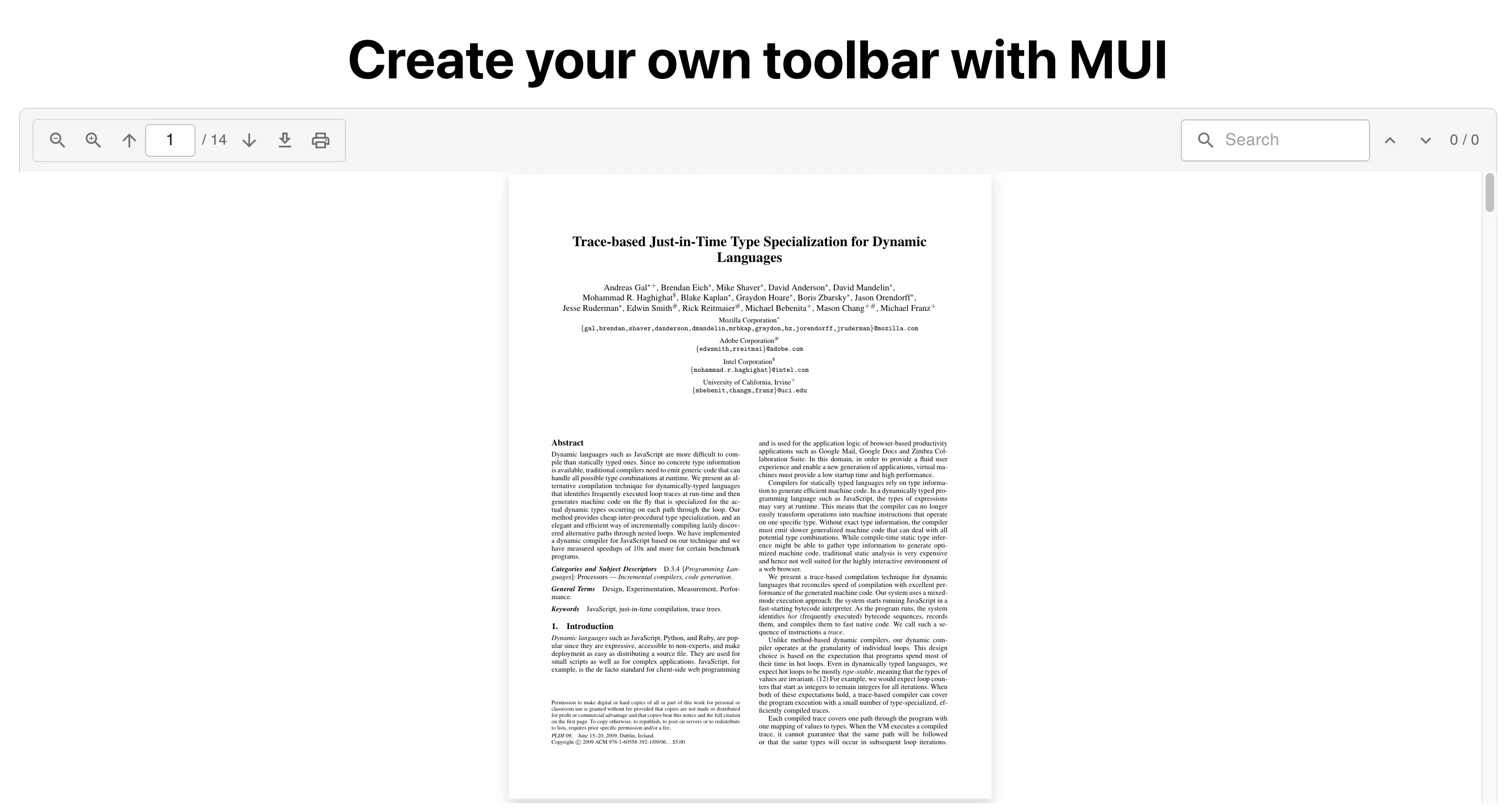
Section titled “Build with MUI using Context API”Build the entire toolbar yourself with MUI only. Use Paper, Toolbar, Stack, IconButton, TextField, Tooltip, Typography and keep the toolbar inside RPProvider so it can use the Context Hooks. You control layout and styling completely.
Key pieces:
- App - Wrap React PDF in
RPConfig(with license key) and renders the viewer component (e.g.AppPdfViewer). - AppPdfViewer - Use
RPProviderwith a PDFsrc, a MUIBox, the MUI toolbarCustomHorizontalBar, andRPPages. - CustomHorizontalBar - Your MUI toolbar:
Paper+Toolbar+Stack, composing Zoom, Pagination, Download, Print, and Search tools. - Tool components - Each tool uses one hook from
@react-pdf-kit/viewerand renders only MUI controls.
Hooks to Use
Section titled “Hooks to Use”The same Hooks power the MUI tool components in Build with MUI using the default toolbar (slots) and Build with MUI using Context API (custom bar).
| MUI tool component | Hook | Purpose |
|---|---|---|
ZoomTool | useZoomContext | Zoom in/out via setZoomLevel |
PaginationTool | usePaginationContext | Page index, total, nextPage, prevPage |
DownloadTool | useFileDownload | Trigger file download |
PrintTool | usePrintContext | Trigger print |
SearchTool | useSearchContext | Query, set query, prev/next match, counts |
-
At the root of your app, wrap the React PDF Viewer component in
RPConfigand pass your domain token. RenderAppPdfViewerinside it so the PDF viewer and its configuration are available to the rest of the tree.src/App.jsx import { RPConfig } from '@react-pdf-kit/viewer'import './App.css'import AppPdfViewer from './components/AppPdfViewer'function App() {return (<><h1>Create your own toolbar with MUI</h1><RPConfig licenseKey={"YOUR_DOMAIN_TOKEN"}><AppPdfViewer /></RPConfig></>)}export default Appsrc/App.tsx import { RPConfig } from '@react-pdf-kit/viewer'import './App.css'import AppPdfViewer from './components/AppPdfViewer'function App() {return (<><h1>Create your own toolbar with MUI</h1><RPConfig licenseKey={"YOUR_DOMAIN_TOKEN"}><AppPdfViewer /></RPConfig></>)}export default App -
Create the
AppPdfViewercomponent. UseRPProviderwith your PDF URL and a MUIBoxthat contains the toolbar andRPPages. The toolbar must stay insideRPProviderso the context hooks (zoom, pagination, search, etc.) are available.src/components/AppPdfViewer.jsx import { Box } from '@mui/material'import { RPProvider, RPPages } from '@react-pdf-kit/viewer'import { CustomHorizontalBar } from './CustomHorizontalBar'const AppPdfViewer = () => {return (<RPProvider src="https://raw.githubusercontent.com/mozilla/pdf.js/ba2edeae/web/compressed.tracemonkey-pldi-09.pdf"><Box sx={{ height: '600px', width: '100%' }}><CustomHorizontalBar /><RPPages /></Box></RPProvider>)}export default AppPdfViewersrc/components/AppPdfViewer.tsx import { Box } from '@mui/material'import { RPProvider, RPPages } from '@react-pdf-kit/viewer'import { type FC } from 'react'import { CustomHorizontalBar } from './CustomHorizontalBar'const AppPdfViewer: FC = () => {return (<RPProvider src="https://raw.githubusercontent.com/mozilla/pdf.js/ba2edeae/web/compressed.tracemonkey-pldi-09.pdf"><Box sx={{ height: '600px', width: '100%' }}><CustomHorizontalBar /><RPPages /></Box></RPProvider>)}export default AppPdfViewer -
Create the
CustomHorizontalBarcomponent using MUI’sPaper,Toolbar, andStack. Put zoom, pagination, download, and print in one row, and place the search control in a second group aligned to the right so the layout stays clear.src/components/CustomHorizontalBar.jsx import { Paper, Stack, Toolbar } from '@mui/material'import { ZoomTool } from './ZoomTool'import { PaginationTool } from './PaginationTool'import { DownloadTool } from './DownloadTool'import { PrintTool } from './PrintTool'import { SearchTool } from './SearchTool'export const CustomHorizontalBar = () => {return (<Paperelevation={0}variant="outlined"squaresx={{borderBottom: 'none',borderRadius: '8px 8px 0 0',bgcolor: 'action.hover',}}><Toolbar variant="dense" disableGutters sx={{ gap: 1, px: 1.5, py: 0.75 }}><Stack direction="row" alignItems="center" spacing={0.5} sx={{ border: 1, borderColor: 'divider', borderRadius: 1, px: 1, py: 0.5 }}><ZoomTool /><PaginationTool /><DownloadTool /><PrintTool /></Stack><Stack direction="row" alignItems="center" spacing={0.5} sx={{ flexGrow: 1, justifyContent: 'flex-end' }}><SearchTool /></Stack></Toolbar></Paper>)}src/components/CustomHorizontalBar.tsx import { Paper, Stack, Toolbar } from '@mui/material'import { ZoomTool } from './ZoomTool'import { PaginationTool } from './PaginationTool'import { DownloadTool } from './DownloadTool'import { PrintTool } from './PrintTool'import { SearchTool } from './SearchTool'export const CustomHorizontalBar = () => {return (<Paperelevation={0}variant="outlined"squaresx={{borderBottom: 'none',borderRadius: '8px 8px 0 0',bgcolor: 'action.hover',}}><Toolbar variant="dense" disableGutters sx={{ gap: 1, px: 1.5, py: 0.75 }}><Stack direction="row" alignItems="center" spacing={0.5} sx={{ border: 1, borderColor: 'divider', borderRadius: 1, px: 1, py: 0.5 }}><ZoomTool /><PaginationTool /><DownloadTool /><PrintTool /></Stack><Stack direction="row" alignItems="center" spacing={0.5} sx={{ flexGrow: 1, justifyContent: 'flex-end' }}><SearchTool /></Stack></Toolbar></Paper>)} -
Each toolbar action is a small component that uses one hook from
@react-pdf-kit/viewerfor behavior and MUI components for the UI. Create the following files.4.1 ZoomTool: Use the
useZoomContexthook to control zoom. Add zoom in and zoom out buttons that change the level by 10% each click, clamped between 10 and 1000.src/components/ZoomTool.jsx import { ZoomInOutlined, ZoomOutOutlined } from '@mui/icons-material'import { IconButton, Tooltip } from '@mui/material'import { useZoomContext } from '@react-pdf-kit/viewer'import { useCallback } from 'react'export const ZoomTool = () => {const { setZoomLevel } = useZoomContext()const handleZoomIn = useCallback(() => {setZoomLevel((prev) => Math.min(prev + 10, 1000))}, [setZoomLevel])const handleZoomOut = useCallback(() => {setZoomLevel((prev) => Math.max(prev - 10, 10))}, [setZoomLevel])return (<><Tooltip title="Zoom out"><IconButton size="small" onClick={handleZoomOut} aria-label="Zoom out"><ZoomOutOutlined fontSize="small" /></IconButton></Tooltip><Tooltip title="Zoom in"><IconButton size="small" onClick={handleZoomIn} aria-label="Zoom in"><ZoomInOutlined fontSize="small" /></IconButton></Tooltip></>)}src/components/ZoomTool.tsx import { ZoomInOutlined, ZoomOutOutlined } from '@mui/icons-material'import { IconButton, Tooltip } from '@mui/material'import { useZoomContext } from '@react-pdf-kit/viewer'import { useCallback } from 'react'export const ZoomTool = () => {const { setZoomLevel } = useZoomContext()const handleZoomIn = useCallback(() => {setZoomLevel((prev) => Math.min(prev + 10, 1000))}, [setZoomLevel])const handleZoomOut = useCallback(() => {setZoomLevel((prev) => Math.max(prev - 10, 10))}, [setZoomLevel])return (<><Tooltip title="Zoom out"><IconButton size="small" onClick={handleZoomOut} aria-label="Zoom out"><ZoomOutOutlined fontSize="small" /></IconButton></Tooltip><Tooltip title="Zoom in"><IconButton size="small" onClick={handleZoomIn} aria-label="Zoom in"><ZoomInOutlined fontSize="small" /></IconButton></Tooltip></>)}4.2 PaginationTool: Use the
usePaginationContexthook to get the current page and total. Add previous and next buttons and a read-only display showing the current page and total (e.g. “3 / 12”).src/components/PaginationTool.jsx import { ArrowDownward, ArrowUpward } from '@mui/icons-material'import { IconButton, Stack, TextField, Tooltip, Typography } from '@mui/material'import { usePaginationContext } from '@react-pdf-kit/viewer'export const PaginationTool = () => {const { focusedPage, totalPages, nextPage, prevPage } = usePaginationContext()return (<Stack direction="row" alignItems="center" spacing={0}><Tooltip title="Previous page"><IconButton size="small" onClick={prevPage} aria-label="Previous page"><ArrowUpward fontSize="small" /></IconButton></Tooltip><Tooltip title="Current page"><TextFieldvalue={focusedPage}size="small"variant="outlined"sx={{width: 48,'& .MuiInputBase-root': { bgcolor: 'background.paper' },'& .MuiOutlinedInput-input': { textAlign: 'center', py: 0.5 },}}slotProps={{ htmlInput: { readOnly: true } }}/></Tooltip><Typography variant="body2" color="text.secondary" sx={{ px: 0.5, minWidth: 28 }}>/ {totalPages}</Typography><Tooltip title="Next page"><IconButton size="small" onClick={nextPage} aria-label="Next page"><ArrowDownward fontSize="small" /></IconButton></Tooltip></Stack>)}src/components/PaginationTool.tsx import { ArrowDownward, ArrowUpward } from '@mui/icons-material'import { IconButton, Stack, TextField, Tooltip, Typography } from '@mui/material'import { usePaginationContext } from '@react-pdf-kit/viewer'export const PaginationTool = () => {const { focusedPage, totalPages, nextPage, prevPage } = usePaginationContext()return (<Stack direction="row" alignItems="center" spacing={0}><Tooltip title="Previous page"><IconButton size="small" onClick={prevPage} aria-label="Previous page"><ArrowUpward fontSize="small" /></IconButton></Tooltip><Tooltip title="Current page"><TextFieldvalue={focusedPage}size="small"variant="outlined"sx={{width: 48,'& .MuiInputBase-root': { bgcolor: 'background.paper' },'& .MuiOutlinedInput-input': { textAlign: 'center', py: 0.5 },}}slotProps={{ htmlInput: { readOnly: true } }}/></Tooltip><Typography variant="body2" color="text.secondary" sx={{ px: 0.5, minWidth: 28 }}>/ {totalPages}</Typography><Tooltip title="Next page"><IconButton size="small" onClick={nextPage} aria-label="Next page"><ArrowDownward fontSize="small" /></IconButton></Tooltip></Stack>)}4.3 DownloadTool: Use the
useFileDownloadhook and call itsdownloadfunction when the user clicks. Add a download button so the user can save the PDF file.src/components/DownloadTool.jsx import { DownloadOutlined } from '@mui/icons-material'import { IconButton, Tooltip } from '@mui/material'import { useFileDownload } from '@react-pdf-kit/viewer'export const DownloadTool = () => {const { download } = useFileDownload()return (<Tooltip title="Download file"><IconButton size="small" onClick={download} aria-label="Download file"><DownloadOutlined fontSize="small" /></IconButton></Tooltip>)}src/components/DownloadTool.tsx import { DownloadOutlined } from '@mui/icons-material'import { IconButton, Tooltip } from '@mui/material'import { useFileDownload } from '@react-pdf-kit/viewer'export const DownloadTool = () => {const { download } = useFileDownload()return (<Tooltip title="Download file"><IconButton size="small" onClick={download} aria-label="Download file"><DownloadOutlined fontSize="small" /></IconButton></Tooltip>)}4.4 PrintTool: Use the
usePrintContexthook and call itsprintfunction on click. Add a print button so the user can open the browser print dialog.src/components/PrintTool.jsx import { PrintOutlined } from '@mui/icons-material'import { IconButton, Tooltip } from '@mui/material'import { usePrintContext } from '@react-pdf-kit/viewer'export const PrintTool = () => {const { print } = usePrintContext()return (<Tooltip title="Print"><IconButton size="small" onClick={print} aria-label="Print"><PrintOutlined fontSize="small" /></IconButton></Tooltip>)}src/components/PrintTool.tsx import { PrintOutlined } from '@mui/icons-material'import { IconButton, Tooltip } from '@mui/material'import { usePrintContext } from '@react-pdf-kit/viewer'export const PrintTool = () => {const { print } = usePrintContext()return (<Tooltip title="Print"><IconButton size="small" onClick={print} aria-label="Print"><PrintOutlined fontSize="small" /></IconButton></Tooltip>)}4.5 SearchTool: Use the
useSearchContexthook for the search query and match navigation. Add a text field for the search term, previous and next match buttons, and a small counter showing the current match and total (e.g. “2 / 5”).src/components/SearchTool.jsx import { ExpandLess, ExpandMore, Search as SearchIcon } from '@mui/icons-material'import { IconButton, InputAdornment, Stack, TextField, Tooltip, Typography } from '@mui/material'import { useSearchContext } from '@react-pdf-kit/viewer'export const SearchTool = () => {const { search, setSearch, prevMatch, nextMatch, totalMatches, currentMatchPosition } = useSearchContext()const handleSearch = (e) => {setSearch(e.target.value)}return (<Stack direction="row" alignItems="center" spacing={0.5}><TextFieldvalue={search}onChange={handleSearch}size="small"placeholder="Search"variant="outlined"slotProps={{input: {startAdornment: (<InputAdornment position="start"><SearchIcon fontSize="small" color="action" /></InputAdornment>),},htmlInput: { 'aria-label': 'Search' },}}sx={{width: 180,'& .MuiInputBase-root': { bgcolor: 'background.paper' },}}/><Tooltip title="Previous match"><IconButton size="small" onClick={prevMatch} aria-label="Previous match"><ExpandLess fontSize="small" /></IconButton></Tooltip><Tooltip title="Next match"><IconButton size="small" onClick={nextMatch} aria-label="Next match"><ExpandMore fontSize="small" /></IconButton></Tooltip><Typography variant="body2" color="text.secondary" sx={{ minWidth: 36 }}>{currentMatchPosition} / {totalMatches}</Typography></Stack>)}src/components/SearchTool.tsx import { ExpandLess, ExpandMore, Search as SearchIcon } from '@mui/icons-material'import { IconButton, InputAdornment, Stack, TextField, Tooltip, Typography } from '@mui/material'import { useSearchContext } from '@react-pdf-kit/viewer'import type { ChangeEvent } from 'react'export const SearchTool = () => {const { search, setSearch, prevMatch, nextMatch, totalMatches, currentMatchPosition } = useSearchContext()const handleSearch = (e: ChangeEvent<HTMLInputElement>) => {setSearch(e.target.value)}return (<Stack direction="row" alignItems="center" spacing={0.5}><TextFieldvalue={search}onChange={handleSearch}size="small"placeholder="Search"variant="outlined"slotProps={{input: {startAdornment: (<InputAdornment position="start"><SearchIcon fontSize="small" color="action" /></InputAdornment>),},htmlInput: { 'aria-label': 'Search' },}}sx={{width: 180,'& .MuiInputBase-root': { bgcolor: 'background.paper' },}}/><Tooltip title="Previous match"><IconButton size="small" onClick={prevMatch} aria-label="Previous match"><ExpandLess fontSize="small" /></IconButton></Tooltip><Tooltip title="Next match"><IconButton size="small" onClick={nextMatch} aria-label="Next match"><ExpandMore fontSize="small" /></IconButton></Tooltip><Typography variant="body2" color="text.secondary" sx={{ minWidth: 36 }}>{currentMatchPosition} / {totalMatches}</Typography></Stack>)} -
(Optional) Add a small library (e.g.
src/lib/const.tsorsrc/lib/const.js) for shared layout or style constants that you reuse across the toolbar or React PDF viewer components.src/lib/const.js export const CENTER_ALIGN_STYLE = { display: 'flex', alignItems: 'center' }src/lib/const.ts export const CENTER_ALIGN_STYLE = { display: 'flex', alignItems: 'center' }
Note
- Use RPConfig at the app root and RPProvider with a PDF
src. - Build the toolbar (CustomHorizontalBar) with MUI only
Paper,Toolbar,Stack,IconButton,TextField,Tooltip,Typography, and@mui/icons-materialand keep it insideRPProviderso it can use the context hooks. - Implement each action as a small MUI component with one hook: useZoomContext, usePaginationContext, useFileDownload, usePrintContext, useSearchContext.
- Render RPPages in the same provider for the PDF. Compose toolbar and pages in one place (e.g. AppPdfViewer).